


YouCam Video: AI Video Editor
3.8436.00 Reviews
App Specs
- Version
- 1.64.1
- Updated On
- License
- Free
- Downloads
- 1,000,000+
- Developer
- Perfect Mobile Corp.
- Categories
- Video Players & Editors
- Platform
- Android, iOS
Screenshots
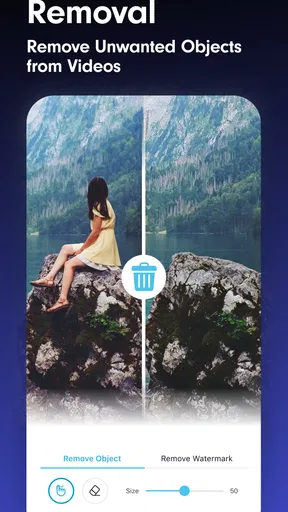
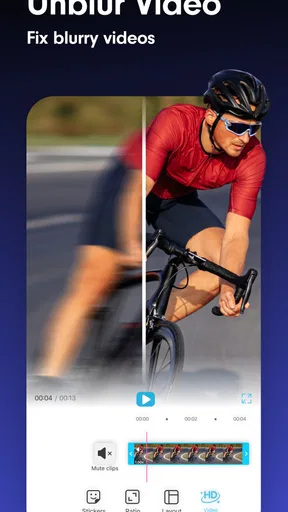
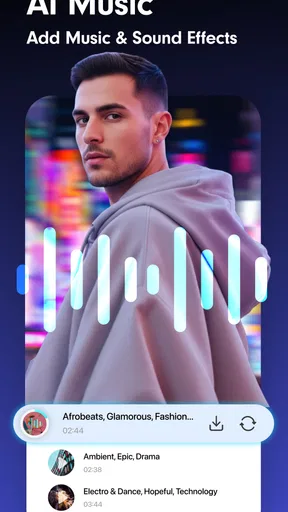
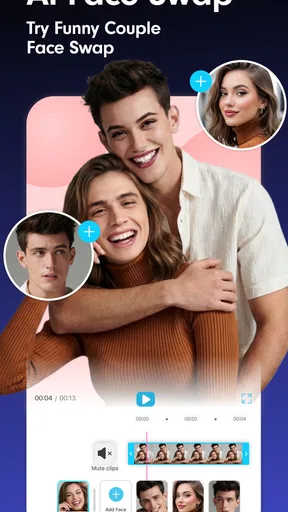
 Analysis by AppCompare
I reach for a mobile video editor when I want a clip to feel more polished without turning a spare moment into a full editing session. YouCam Video: AI Video Editor is built around that kind of quick creative work, with AI tools aimed particularly at improving the look of people in a video. That focus makes it more interesting than a basic trimmer, but it also shapes who is likely to enjoy using it: it suits casual creators who want a noticeable visual change, not people looking for a precise, timeline-heavy production suite.
Why its people-focused AI is the main attraction
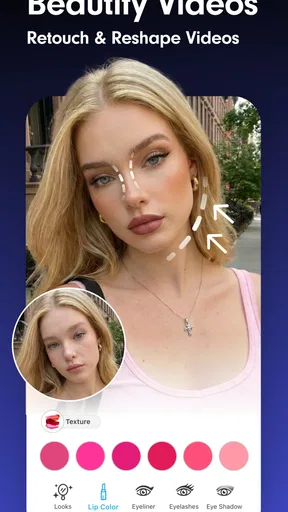
The most distinctive reason I would open this app is its AI-assisted face and appearance editing. Rather than treating a video as a collection of cuts alone, it lets you work on how a person looks on screen, including applying beauty adjustments and makeup effects. That can be useful for a short selfie clip or a casual video recorded in less-than-ideal lighting, where a small adjustment can make the result feel more ready to share.
I would use these effects with a light touch. A strong beauty treatment can make a face look less natural, especially when the subject moves or the camera angle changes. My practical approach is to begin with a restrained adjustment, preview the clip from beginning to end, and only increase the effect if it remains believable throughout. A still frame can look fine while motion makes the edit more obvious.
This emphasis also gives the app a different feel from a conventional editor. A general-purpose video tool usually puts cutting, arranging, and timing at the center. Here, the visual treatment of the subject is a major part of the appeal. That is a real advantage for face-led social clips, though less compelling if your project is mostly scenery, product footage, or a sequence that needs detailed control over every moment.
How I would shape a clip without overediting it
For a simple project, I would first choose the strongest source clip, trim away the dead time, and decide what the video is meant to communicate before adding effects. Once the basic shape is clear, appearance adjustments can help the subject stand out; a filter, a little text, or a sticker can then support the mood. Doing those steps in that order makes it easier to tell whether an effect genuinely helps or merely adds decoration.
A useful, less obvious habit is to check the original sound before choosing a music bed. If a clip contains a person speaking, a laugh, or another moment that gives it character, lowering the added music can preserve that context. For a silent montage, music can do more of the work. The app’s audio controls make that balance approachable, but the important choice is editorial: decide what the viewer should listen to, rather than simply layering in a track because the option is there.
I would also keep text brief and place it where it does not compete with a face or the important action. Animated captions and stickers can make a post feel playful, but they can also crowd a small phone screen. Previewing the export on the kind of screen where friends will watch it is a simple way to catch text that is too small or a layout that feels busy.
Worth Reading Before You Choose

EA SPORTS FC Mobile 26 Is a Bigger Football Game, but It Takes Time

Flipboard Shows What News Apps Must Do Beyond the Feed

Switching to Android Auto Means Rethinking Your Driving Routine

Google Calendar Makes a Crowded Week Easier to Manage

Ludo King Makes the Most of the Minutes Between Plans

Baby Panda World Brings Quick Play to Modern Phones, but Its Game Library Feels Busy
A realistic everyday use—and a useful stopping point
Imagine recording a quick birthday greeting at home. The room is ordinary, the clip has a few seconds of hesitation at the start, and the speaker wants to share it with relatives. I would trim the pause, make a modest appearance adjustment if the person wanted one, keep the original voice clear, and add a short greeting only if it helps the message. That is the sort of contained task where a phone-first editor can save time without demanding a laptop or a complicated workflow.
The stopping point matters. If the clip needs several carefully timed scenes, consistent color across different cameras, layered sound design, or detailed motion graphics, a more traditional editor is the better fit. YouCam Video can help a quick piece look finished, but convenience should not be mistaken for the fine-grained control of desktop software. For me, the best result comes from treating it as a focused finishing tool, not asking it to replace every stage of a larger production.
Who is likely to get the most from it
I would recommend trying it if you regularly make face-to-camera posts, short personal videos, or casual clips where appearance effects and quick visual polish matter more than precise editing. It is also approachable for someone who finds a conventional multitrack timeline intimidating and wants to experiment with a more direct set of tools.
On the other hand, I would steer away if your priority is documentary-style editing, long-form projects, detailed audio mixing, or exact control over a complicated sequence. I would also be cautious if you prefer an unretouched look: the same beauty tools that can make a portrait clip feel polished may be unnecessary or distracting for your style. The best choice depends less on whether AI sounds appealing and more on whether its particular subject-focused effects match the videos you actually make.
Getting Started with YouCam Video
First things first, downloading and setting up YouCam Video is a breeze. Available on both Android and iOS, the app is pretty lightweight, so it doesn’t hog your phone’s storage. Once installed, you’re greeted with a clean and intuitive interface, which is a relief because who has time to figure out a complicated app these days?
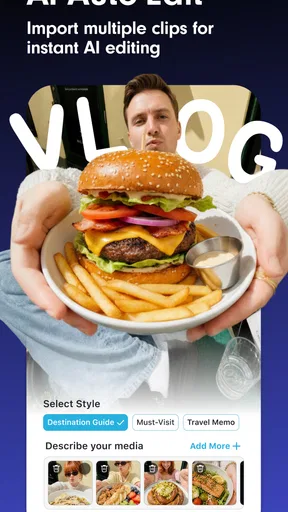
The app doesn’t waste time and lets you dive right into editing. You can either start a new project or continue working on an existing one. I appreciated how swiftly I could import videos from my gallery – no fuss, no muss.
Unleashing Creativity with AI-Powered Tools
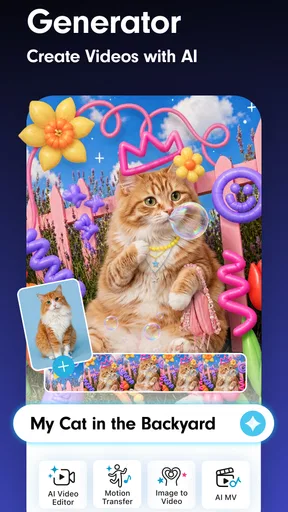
Now, here’s where the magic happens. The app is packed with AI-powered features that make editing not just simple but also fun. The AI helps in automatically identifying key elements in your video, like faces and objects, allowing you to apply effects specifically to those areas. It’s like having a mini-production team right in your pocket.
One of my favorite features is the AI-driven beautification tools. Whether you’re looking to smooth out skin tones or add a dash of makeup, the app has you covered. I tried adding some virtual makeup to a friend’s video, and the results were surprisingly realistic. It’s perfect for those days when you want to look effortlessly glam without the actual effort.
Enhancing Videos Like a Pro
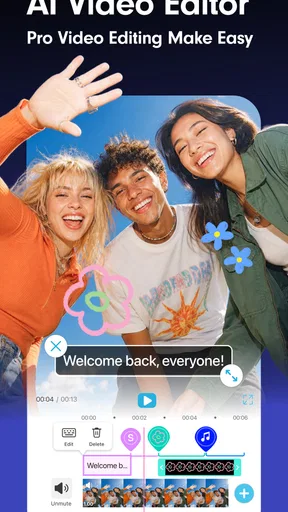
Beyond beautification, the editing toolkit is robust. You can trim, crop, and merge clips with ease. Adding transitions between clips is as simple as dragging and dropping. The variety of filters and effects makes it easy to give your videos the vibe you’re going for, whether it’s a retro look or something more modern.
For those who love adding text or stickers, the app doesn’t disappoint. I found the selection quite extensive and the customization options – like adjusting fonts, colors, and animations – are a nice touch. You can really personalize your videos to make them stand out on social media.
Audio and Music Integration
No video is complete without the right soundtrack, and YouCam Video delivers here as well. The app allows you to add music from its library or your own collection. Synching the audio with the video is straightforward, and you can adjust the volume levels to ensure the music doesn’t overpower the video’s original audio.
I also played around with adding voiceovers, which is a nifty feature for anyone looking to create vlogs or tutorial videos. The app records directly and integrates your voiceover seamlessly into the project.
Exporting and Sharing Your Masterpiece
Once you’ve put the finishing touches on your video, exporting it is simple. The app offers several resolution options, so you can decide whether you want to prioritize quality or file size. Sharing directly to social media platforms like Instagram or TikTok is also possible, making it easy to showcase your creativity to the world.
For a phone editor in the video-creation category, the overall balance is useful: it combines quick clip assembly with tools for styling a person on screen. A traditional editor may offer a more deliberate timeline and greater control over complex sequences, while a basic trimming app may be faster when all you need is to cut a beginning and an ending. I see this app in the middle: especially worthwhile when a face-led clip needs polish, less persuasive when the job is simply stitching together footage with exact timing.
What to consider before making it part of your routine
The app is free to download, and its Everyone age rating makes it broadly accessible. Perfect Mobile Corp. is the developer. It has a 3.8 average from around 16,000 ratings, with over one million installs, which gives a newcomer a sense of its reach without guaranteeing that every tool will suit their taste. The current version is 1.60.1 and requires Android 10 or later on Android devices.
There are in-app purchases, with listed items ranging from $1.99 to $119.99. I would explore the free experience first and decide whether the specific editing tools I use often justify spending anything. The price range is broad enough that it is sensible to check the purchase details in the app before committing, rather than assuming every effect or option is included at no cost.
One practical workflow is to make a short test edit before building a longer project. Try a brief section with the appearance effect you want, then inspect it both during movement and in the finished export. That quick check can reveal whether the look stays natural and whether the text, music, and original audio coexist well. It also helps avoid spending time styling a whole clip in a direction that does not work once everything plays together.
Another trade-off is creative consistency. If you are making several posts in a series, repeatable choices—similar text styling, restrained effects, and a consistent approach to music—can make the clips feel connected. The app offers plenty of ways to customize a single video, but having many options can tempt me to give each post a different look. A simple personal template, even one I keep in mind rather than save as a preset, makes a feed feel more deliberate.
For creators who want an AI-assisted portrait treatment, that focused strength can be more useful than a longer list of advanced editing controls. For anyone who needs precision above all, the reverse is true: a timeline-based alternative is likely the better investment of time. I would decide based on the footage I make most often, not on the number of effects available.
My recommendation for the right kind of project
Overall, YouCam Video: AI Video Editor is a handy option when I want to give a short, person-centered clip a quick lift and finish it on my phone. The appeal is not that it replaces a professional editing setup; it is that I can shape a simple video, adjust its look, and prepare it for sharing without making the process feel like a project of its own.
If you mostly create casual social clips, greetings, or face-to-camera videos, I think it is worth exploring. If your work depends on exact cuts, intricate sound, or an intentionally untouched image, I would choose a different kind of editor. Used for the jobs it handles naturally—and with a light hand on the effects—it can make everyday footage feel more considered without taking the fun out of making it.
Pros
- User-friendly interface makes editing easy.
- Wide range of filters and effects available.
- Real-time preview of edits is super helpful.
- AI features enhance video quality seamlessly.
- Supports multiple video formats for flexibility.
Cons
- Free version has limited features available.
- Occasional lag on older devices.
- Exporting videos can be slow sometimes.
- In-app purchases can be costly.
- Some features require persistent internet.
FAQs for YouCam Video: AI Video Editor
What features does YouCam Video: AI Video Editor offer?
YouCam Video: AI Video Editor provides a range of features including AI-powered enhancements, filters, and effects to elevate your videos. It also offers tools for trimming, merging, and adding music and text overlays. The app is designed to be user-friendly, making it accessible for both beginners and experienced editors looking to create professional-quality content.
Is YouCam Video: AI Video Editor free to use?
The app offers a free version with basic editing tools and features. However, to access premium features such as exclusive filters, advanced editing options, and an ad-free experience, a subscription is required. Users can choose from various subscription plans based on their needs and budget.
Can YouCam Video: AI Video Editor handle 4K video editing?
Yes, YouCam Video: AI Video Editor supports 4K video editing, allowing users to enhance and edit high-resolution videos without compromising quality. This makes it a suitable choice for content creators who require high-definition video outputs for platforms like YouTube and Instagram.
Is YouCam Video: AI Video Editor suitable for beginners?
Absolutely, the app is designed with an intuitive interface that is easy for beginners to navigate. It includes tutorials and tips to help new users understand the editing process quickly. The AI features also simplify complex editing tasks, making it easier for users with no prior experience to create stunning videos.
What are the system requirements for YouCam Video: AI Video Editor?
YouCam Video: AI Video Editor is compatible with both Android and iOS devices. It requires Android version 8.0 and up, or iOS version 12.0 or later. Adequate storage space and a stable internet connection are recommended to ensure smooth operation and access to all features, especially when using AI enhancements.


